
How to Clean Up High-Poly Blender Models Without Ruining Them
A step-by-step Blender workflow for reducing heavy meshes, repairing bad geometry and preserving the silhouette, shading and production data that actually matter.
A high polygon count is not automatically a problem. A dense sculpt that renders correctly and never leaves Blender may be perfectly acceptable. Cleanup becomes necessary when the mesh slows interaction, blocks export, creates poor shading, prevents retopology or exceeds the requirements of the target platform.
The safest workflow starts by identifying why the model is heavy instead of immediately applying Decimate.
1. Find the source of the cost
Before changing geometry, inspect the object and ask:
- Is the density part of a sculpt or scan?
- Is a modifier generating most of the polygons?
- Are there duplicate surfaces or hidden internal parts?
- Is the mesh triangulated because of an import?
- Are several objects carrying geometry that is never visible?
- Are subdivision settings higher than the final output requires?
- Is the real bottleneck geometry, or are textures, modifiers and materials the larger cost?
A model with 500,000 useful faces is different from a model with 500,000 faces caused by accidental subdivision.
2. Protect the original and create a working copy
Keep a source object or versioned file untouched. High-poly cleanup is often iterative. You may discover that a detail lost during reduction is needed for baking, texture projection or a close-up render.
A protected original also lets you compare the new silhouette rather than trusting memory.
3. Remove obvious waste before remeshing
Start with operations that do not fundamentally redesign the surface:
- Delete duplicate objects and unseen internal geometry when you know it is unnecessary.
- Review modifiers and disable or reduce levels that are not needed.
- Merge accidental duplicate vertices where appropriate.
- Remove isolated fragments that are clearly artifacts.
- Separate components that need different treatment.
The less garbage you feed into a remesher, the easier it is to judge the result.
4. Decide whether you need decimation or retopology
Decimation is primarily about reducing existing geometry. It is useful when the shape is already valid and you simply need fewer faces.
Retopology or remeshing rebuilds the mesh. It is useful when the current topology itself is the problem: poor triangulation, uneven density, intersections, broken surface structure or a layout that is difficult to edit.
Do not use remeshing just because a model is dense. Do not use decimation when the surface is fundamentally broken.
5. Use Voxel Remesh for dirty volume
Blender's Voxel Remesh is effective when the source has self-intersections, internal surface problems or scan-like noise. Because it rebuilds the shape through a voxel grid, it can create a coherent manifold surface from input that is difficult to edit directly.
Choose voxel size based on the smallest feature you must keep. A coarse grid is fast but can erase detail. A fine grid keeps detail but may return you to a very high polygon count.
Treat it as a repair stage, not automatically as the final optimized mesh.
6. Use quad remeshing when editability matters
If the source surface is coherent but its topology is unsuitable, Blender's QuadriFlow or a specialist retopology tool can rebuild it into a more regular layout. This is useful when you need easier editing, subdivision behavior or a predictable face budget.
For hard-surface objects, inspect sharp features closely. A generic organic-style remesh can soften corners and flatten openings. Tools that distinguish hard-surface from organic geometry are useful when you process many different asset types.
For a deeper comparison, see Best Blender Retopology Tools in 2026.
7. Build a proxy for extremely large meshes
When an asset is so large that every operation becomes slow, create a working proxy rather than trying to perform every diagnostic on the full source.
The proxy should preserve:
- Overall silhouette.
- Major holes and boundaries.
- Hard-surface feature lines.
- Separate components that matter.
- Enough detail to guide the final rebuild.
The original remains the reference for projection and final comparison.
8. Restore surface data after topology is accepted
Topology operations can affect UVs, attributes and material assignments. Do geometry work first, then restore data:
- Confirm the final shape.
- Fix normals and inspect smooth shading.
- Recreate or transfer UVs.
- Restore material assignments.
- Transfer vertex data if required.
- Bake high-frequency information from the original if the asset uses a low/high workflow.
This order prevents repeated rework.
9. Validate at the destination
If the model is for Unreal Engine, Unity or another DCC, export a representative version early. A mesh that looks acceptable in Blender can still reveal scale, tangent, material, collision or import issues downstream.
For real-time work, measure the complete asset cost rather than face count alone. Materials, draw calls, texture memory, skinning and LOD strategy can matter just as much.
A simple cleanup decision tree
If the model is valid but just too dense, reduce it conservatively.
If it is broken or intersecting, repair volume first.
If it is coherent but difficult to edit, rebuild topology.
If it is hard surface, preserve sharp features and compare planar shading.
If it is for animation, prioritize deformation topology rather than merely producing quads.
If it is too large to process comfortably, use a proxy while keeping the source available.
The best cleanup is the smallest intervention that solves the real bottleneck. Every destructive step should have a reason.
Tools mentioned in this article
Product availability and pricing may change.
Blender · Linux · Windows · macOS
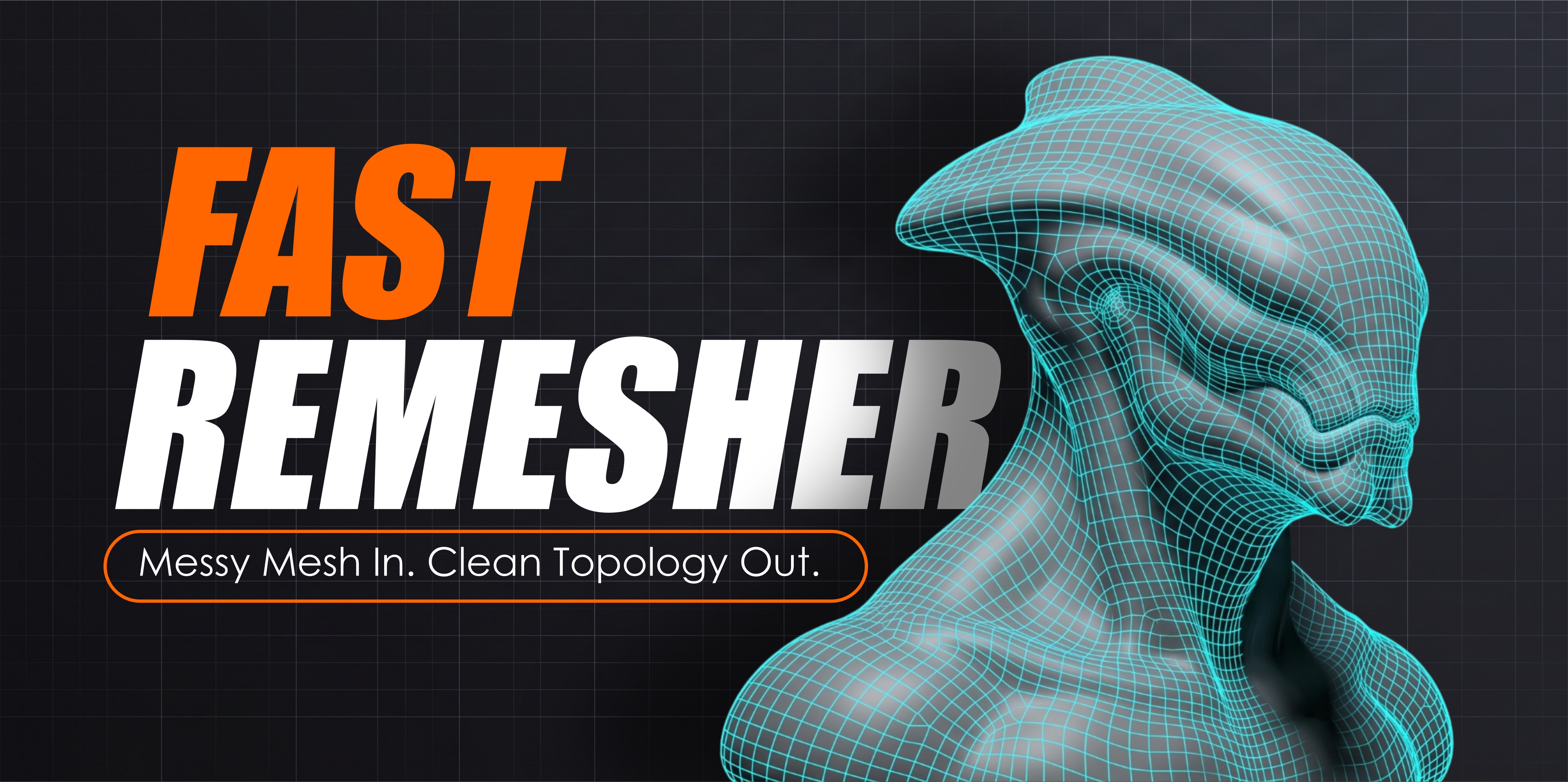
Fast Remesher
Blender · Linux · Windows · macOS
Focused cleanup option for rebuilding difficult meshes.
.jpeg)
Blender · macOS · Windows · Linux
Quadify Ultra — ML-Routed Retopology for Blender 5.0+
Blender · macOS · Windows · Linux
Production retopology option for mixed high-poly asset libraries.
Common questions
Is Decimate the same as retopology?
No. Decimation reduces existing geometry, while retopology rebuilds the mesh layout. Choose based on whether density or topology is the real problem.
How much should I reduce a high-poly model?
There is no universal percentage. Reduce until the asset meets its destination requirements without unacceptable silhouette, shading or deformation loss.
Should I apply all modifiers before cleanup?
Not automatically. Some modifiers are part of the intended non-destructive workflow. Understand what generates the geometry before applying anything destructively.