
Pipeline And Automation
Morphbridge – Shape Key Transfer For Different Topology | Blender Addon
MorphBridge — Transfer Shape Keys Between Meshes with Different Topology MorphBridge lets you move Shape Keys (blend shapes / morph targets) from one mesh to another even when the topologies don’t match. No identical ver…
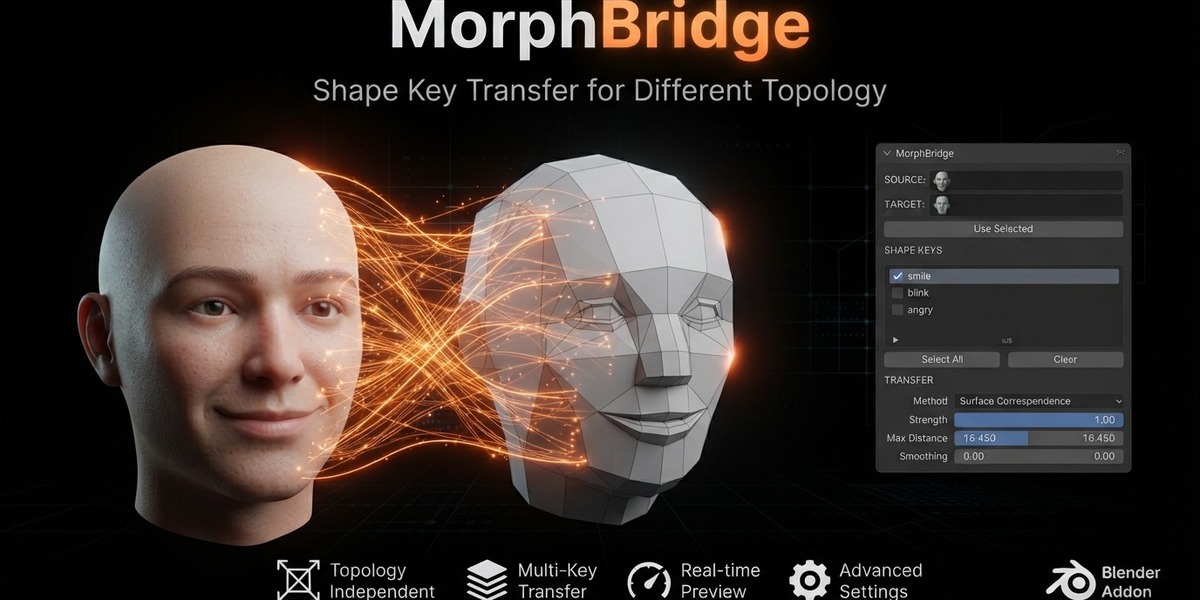
MorphBridge — Transfer Shape Keys Between Meshes with Different Topology MorphBridge lets you move Shape Keys (blend shapes / morph targets) from one mesh to another even when the topologies don’t match. No identical vertex counts, no matching order, no tedious manual reconstruction. It builds surface correspondence with BVH + barycentric interpolation on the closest triangle, then transfers the deformation cleanly and controllably.
Why MorphBridge? In character pipelines you constantly need the same expressions, corrective shapes, or body morphs on meshes that were remodelled, retopologized, or come from different sources. Traditional methods either require matching topology or force you to rebuild every shape by hand. MorphBridge solves this by:
Projecting each target vertex onto the source surface Reconstructing the deformation via barycentric weights Giving you precise control over strength, smoothing, masking, and selection
The result is usable Shape Keys on the target mesh in seconds instead of hours.
Key Features True Different-Topology Transfer
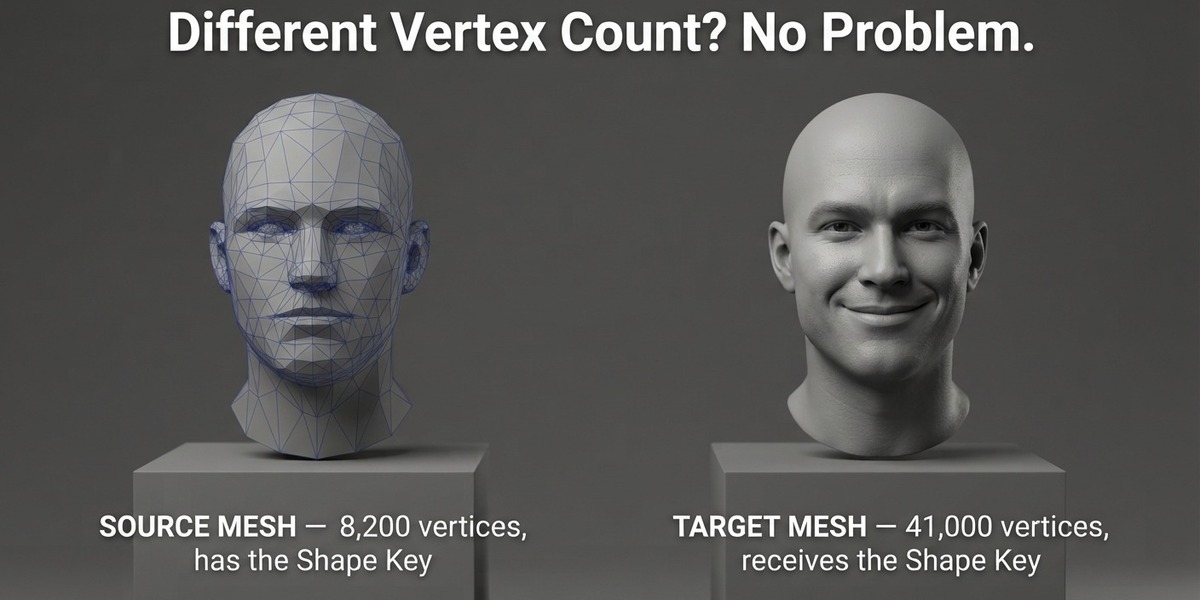
Source and target do not need the same vertex count or order. Correspondence is computed on the surface, not by index. Surface Projection
BVH closest-triangle lookup + barycentric interpolation for accurate, stable results. Strength Control
Multiplier from –2.0 to 2.0. Use values above 1.0 to exaggerate, negative values to invert the deformation. Optional Laplacian Smoothing
Smooth the transferred deltas across neighboring vertices with adjustable iteration count. Influence Mask
Limit the transfer with a vertex group on the target (and optionally invert it). Ideal for isolating face, body regions, clothing, etc. Selected Vertices Only
Restrict the transfer to currently selected vertices on the target; everything else stays at Basis. Use Evaluated Mesh
Optionally build correspondence from the modifier-evaluated mesh (when vertex count is preserved). Clean Multi-Select UI
Tick the Shape Keys you want, Select All / Clear buttons, and clear progress feedback. Quality Feedback
After transfer you get match-rate and average-distance statistics so you know how well the surfaces corresponded. Replace Existing Keys
Optionally overwrite Shape Keys of the same name on the target.
Typical Workflow
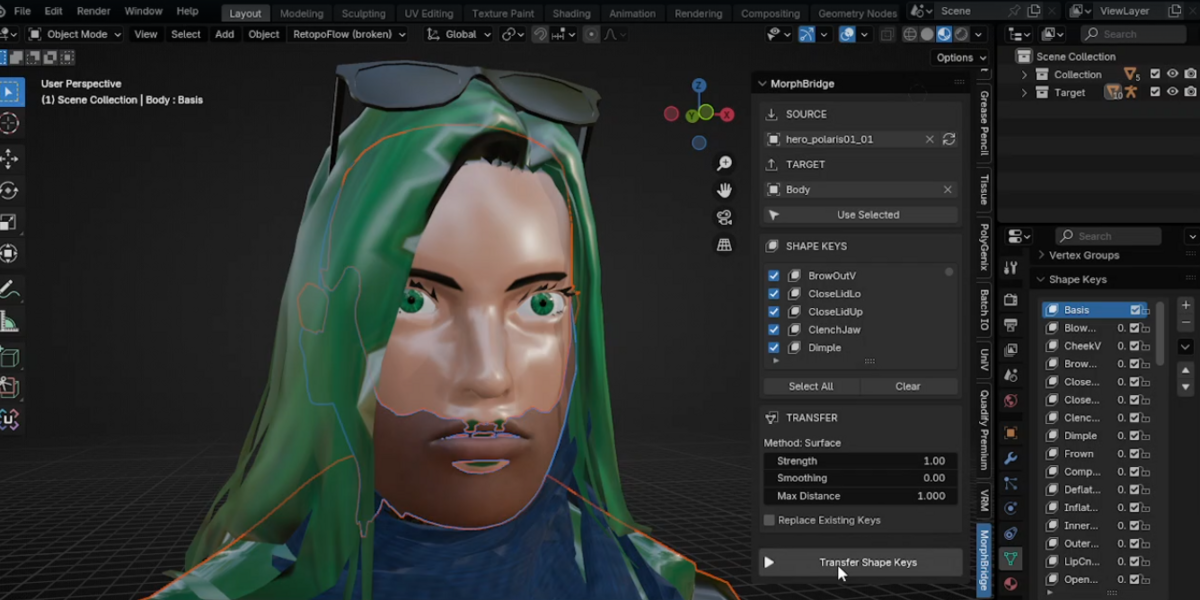
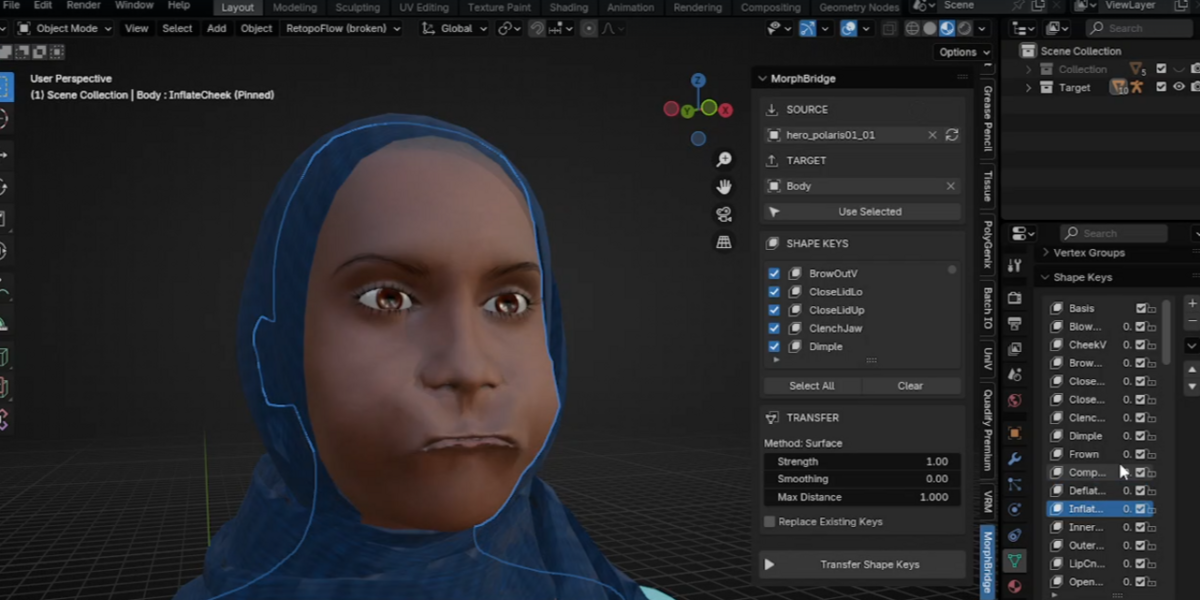
Place Source and Target so their surfaces roughly overlap in world space. Assign Source (mesh that already has Shape Keys) and Target. – Or select both and click Use Selected (active object becomes Target). Tick the Shape Keys you want to transfer. Adjust Max Distance if the objects are not perfectly aligned. Optionally set Strength, Smoothing, Influence Group, or Selected Vertices Only. Click Transfer Shape Keys.
Tips for Best Results
Low match rate → objects are too far apart or Max Distance is too small. Align them and increase the distance. Use Modifiers only works when the evaluated mesh keeps the same vertex count (no Subdivision Surface, Boolean, etc.). Influence Group multiplies the transferred delta per vertex — perfect for regional control. Selected Vertices Only leaves unselected target vertices untouched at the Basis shape.
Compatibility & Requirements
Blender 4.2 and newer Works with any mesh that has Shape Keys GPL-3.0-or-later
Panel location: 3D Viewport → Sidebar → MorphBridge tab Transfer Shape Keys across different topology — quickly, accurately, and with full artistic control.