

Pipeline And Automation
Cadprep — Cad Import & Prep For Blender
CADPrep — Import and Clean CAD Files in Blender Blender cannot natively open STEP or IGES files. CADPrep changes that. Import STEP, IGES, and BREP files directly into Blender using a bundled OpenCASCADE engine—then autom…
CADPrep — Import and Clean CAD Files in Blender
Blender cannot natively open STEP or IGES files. CADPrep changes that.
Import STEP, IGES, and BREP files directly into Blender using a bundled OpenCASCADE engine—then automatically clean, optimize, and organize the resulting meshes.
No Python setup. No pip commands. No internet connection. No external converters.
✓ One-time purchase ✓ No subscription or account ✓ Fully local with no telemetry ✓ Blender 4.2+
CAD Import Without the Setup Headache
CADPrep includes the CAD engine inside the extension. Install the correct build for your operating system and start importing.
Supported formats
- STEP and STP
- IGES and IGS
- BREP
Proprietary formats such as SolidWorks, CATIA, Creo, and Fusion 360 F3D must first be exported to STEP.
Control the mesh density
Choose the tessellation quality during import using linear and angular deflection controls.
Use fine tessellation for hero renders or lighter settings for game-ready assets. You control the result instead of accepting a converter’s fixed defaults.
Preserve real-world scale
CAD files authored in millimetres are converted to Blender’s metre-based scale by default. A manual scale control is also available for files created with different units.
Import and Prepare in One Step
Enable Prep After Import to run CADPrep’s complete cleanup pipeline immediately after importing the file.
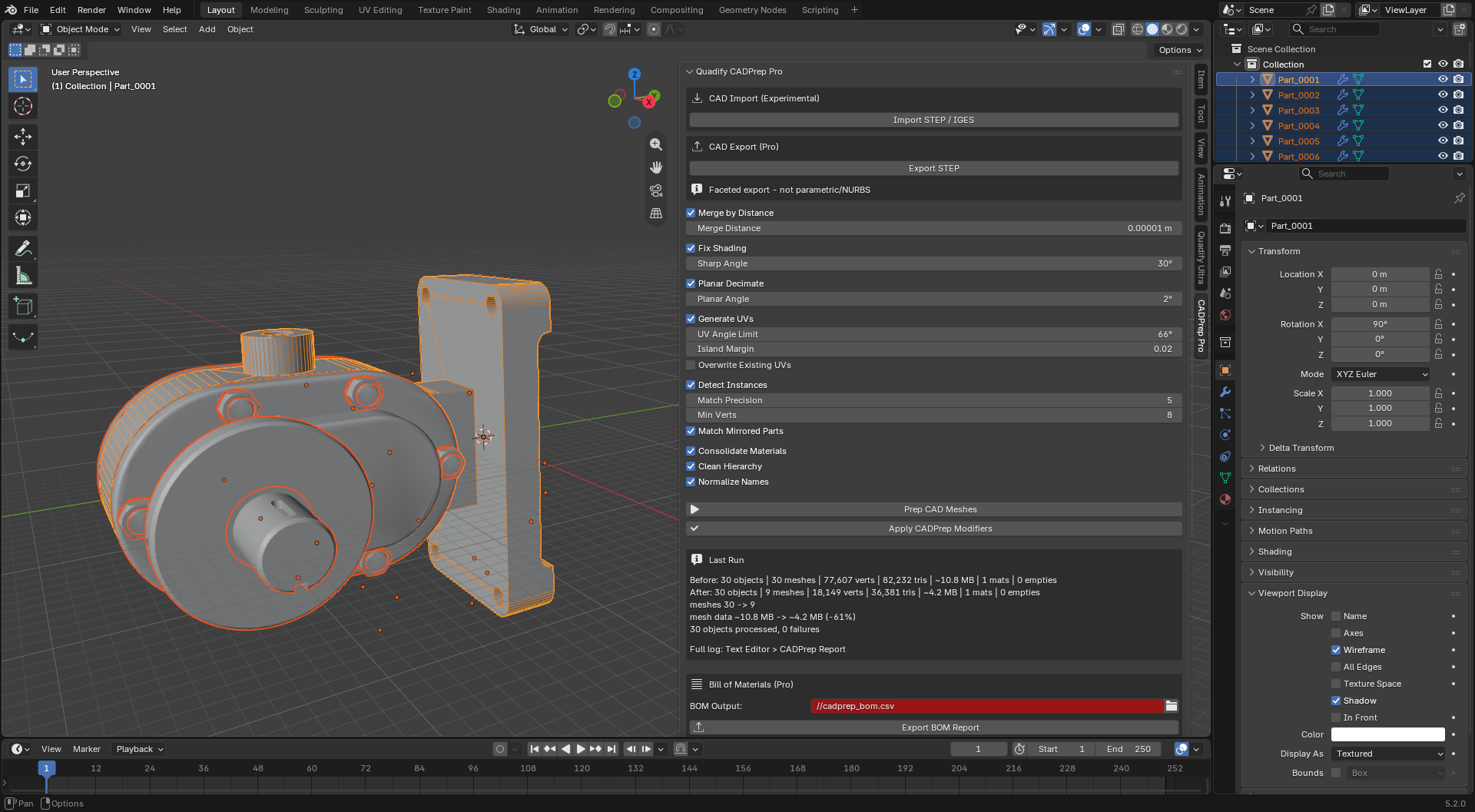
A supplier sends you a gearbox assembly as a STEP file. Select the file, choose the mesh density, enable Prep After Import, and CADPrep handles the rest: shading, optimization, UVs, instances, materials, hierarchy, and names.
Seven-Stage Cleanup Pipeline
Every stage can be enabled or disabled independently. The pipeline works with CADPrep imports and mesh objects created by other importers.
Select specific objects, or select nothing to process the entire scene.
Fix Shading
CADPrep detects sharp edges from face angles and applies weighted normals. Machined edges remain crisp while curved surfaces appear smooth, removing the typical faceted CAD look.
Planar Decimate
Redundant coplanar geometry is dissolved while sharp edges, material boundaries, and UV seams are protected.
The optimization remains non-destructive as a modifier until you choose to apply it.
Detect and Instance Repeated Parts
CAD importers often create a separate full mesh for every screw, bracket, and fastener—even when the parts are identical.
CADPrep:
- Detects repeated geometry
- Handles rotated copies
- Recovers the correct rigid alignment
- Numerically verifies each match
- Links verified copies to one shared mesh
- Corrects their transforms so nothing visibly moves
Parts that cannot be verified are skipped and identified in the report. CADPrep does not guess.
Generate UVs
Smart UV projection is created for meshes without UV maps. Existing UVs are preserved unless you explicitly choose to replace them.
Consolidate Materials
Duplicate materials are matched by name and surface properties, merged, and remapped across every affected material slot.
Clean the Hierarchy
Unused empty transforms are removed while meaningful assembly structure is preserved.
Normalize Names
Importer suffixes and naming noise are converted into clean, consistently numbered part names.
Reliable Batch Processing
One bad mesh will not stop the entire assembly.
Each object is processed independently. If a stage fails, CADPrep records the object and the failed stage, then continues processing everything else.
The pipeline is also designed to be safely rerun. Objects that are already prepared are left unchanged.
Complete Before-and-After Reports
CADPrep does not silently rewrite your scene.
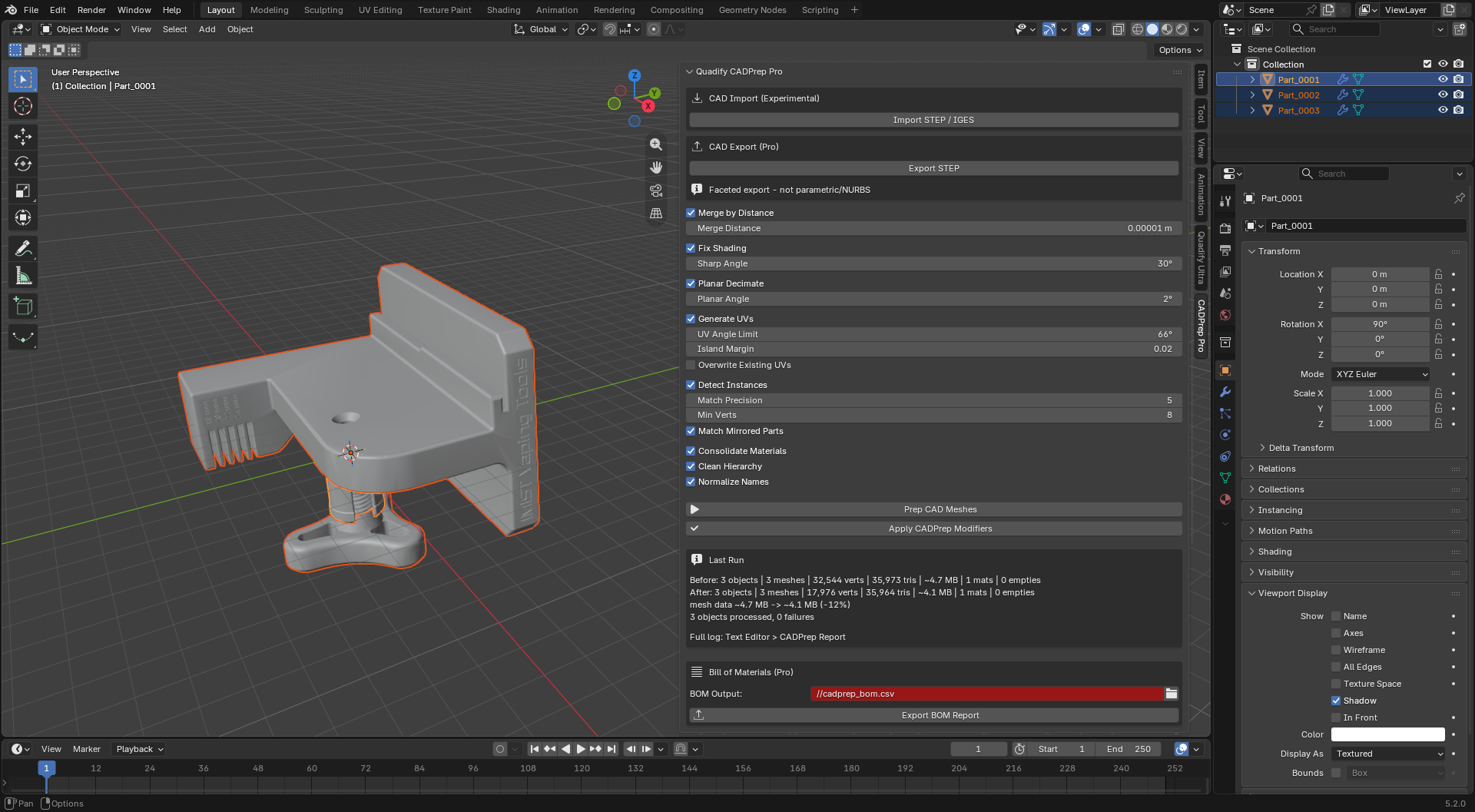
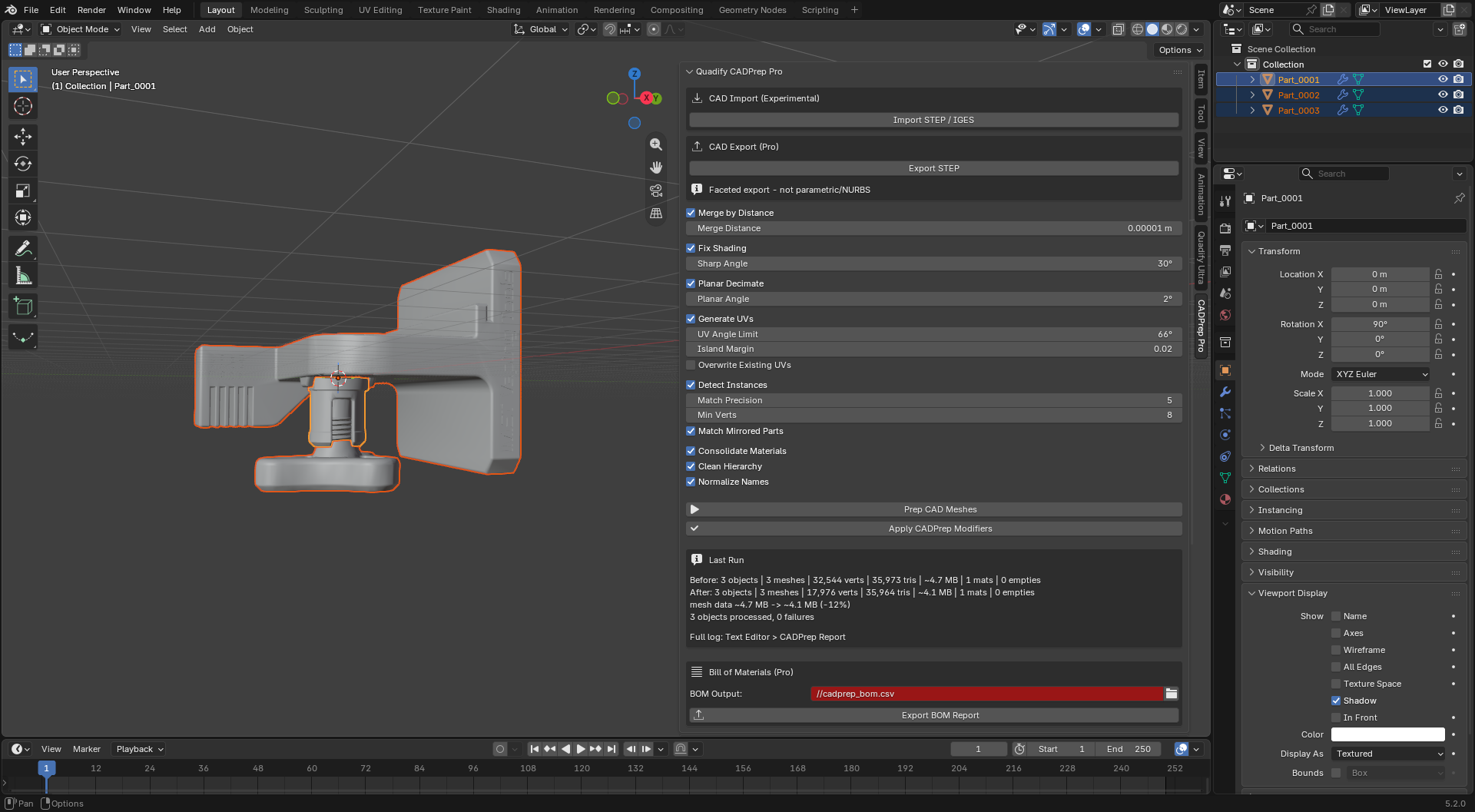
After every run, the panel shows a clear before-and-after summary, including:
- Object count
- Unique mesh count
- Vertex and triangle counts
- Materials
- Empty objects
- Estimated mesh memory
- Total mesh-data reduction
Example:
Meshes 28 → 19 · Materials 2 → 1 · Estimated mesh data −85%
CADPrep also creates a written report in Blender’s Text Editor. Every stage receives an OK or FAIL entry for each object, including what was changed, skipped, linked, or renamed.
If something goes wrong, the report tells you exactly where it happened.
Example: Rotated Instance Detection
An industrial assembly contains the same bracket eight times at different rotations. The importer has baked every copy into separate geometry, so ordinary duplicate detection cannot recognize them.
CADPrep aligns the parts, verifies that their geometry matches, and converts them into linked instances. The assembly looks identical but uses substantially less mesh data.
Works With Your Existing Pipeline
CADPrep sits at the beginning of your asset pipeline and produces cleaner meshes for:
- Cycles and EEVEE rendering
- Unreal Engine export
- Unity export
- Quadify retopology
- Other Blender optimization and texturing tools
For quad-dominant, subdivision-ready topology, process the prepared result with a Quadify retopology edition.
CADPrep vs. a Basic STEP Importer
| Feature | Basic STEP importer | CADPrep | | -------------------------- | --------------------------------- | --------------------------------------------------- | | STEP, IGES and BREP import | Opens the file | Opens the file with controllable tessellation | | Setup | May require external dependencies | CAD engine bundled inside the extension | | Shading cleanup | Manual | Automated | | Planar optimization | Manual | Automated and non-destructive | | Repeated parts | Separate full meshes | Verified linked instances, including rotated copies | | UV generation | Usually absent | Automated where needed | | Material cleanup | Manual | Duplicate materials consolidated | | Hierarchy and naming | Often cluttered | Cleaned and normalized | | Reporting | Limited or absent | Before/after statistics and per-object audit log |
Honest Limitations
Proprietary CAD formats require one export step
CADPrep cannot directly open proprietary formats such as SolidWorks, CATIA, Creo, or F3D. Export the file to STEP from its native application, then import it with CADPrep.
Some symmetrical parts cannot be safely aligned
Featureless cylinders, plain washers, and other perfectly symmetrical parts may not provide enough geometric information to verify their rotation.
CADPrep skips uncertain matches instead of risking an incorrect merge. Mirrored instances are not matched in this version.
CADPrep is not a retopologizer
It creates clean, optimized, correctly shaded tessellated meshes. It does not produce quad-dominant, subdivision-ready topology.
Memory figures are estimates
Memory reductions use a per-element estimate and are marked with ~. They are useful for comparing cleanup results but are not intended as exact system-memory measurements.
Compatibility
- Blender 4.2 and newer
- Windows
- Linux
- macOS Apple Silicon
- macOS Intel
Download the build made for your operating system.
CADPrep works completely offline and includes no accounts, subscriptions, analytics, or telemetry.
Frequently Asked Questions
Do I need Python or other software installed?
No. The OpenCASCADE engine is included with CADPrep. You do not need system Python, pip, an internet connection, or an external converter.
Can CADPrep open SolidWorks, CATIA, Creo, or F3D files?
Not directly. These are proprietary formats. Export the model to STEP from the original application, then open the STEP file with CADPrep.
Will instance detection move my parts?
No. Every match is numerically verified before meshes are linked. CADPrep adjusts the object transform so the part remains in exactly the same world-space position.
Uncertain matches are skipped and listed in the report.
Does it work with meshes from other importers?
Yes. The preparation pipeline works with mesh objects regardless of how they entered Blender—including third-party STEP importers and OBJ exports.
What should I do if a file fails?
Send the CADPrep Report from Blender’s Text Editor, together with your Blender version and operating system. The report records every stage and usually makes the source of the problem clear.
Refunds are handled according to Superhive’s marketplace refund policy.
Anvil Interactive Solutions anvilinteractivesolutions@gmail.com