
Client And Agency Systems
Anvil Capture (Free) – Screenshot, OCR & Clipboard History for Windows
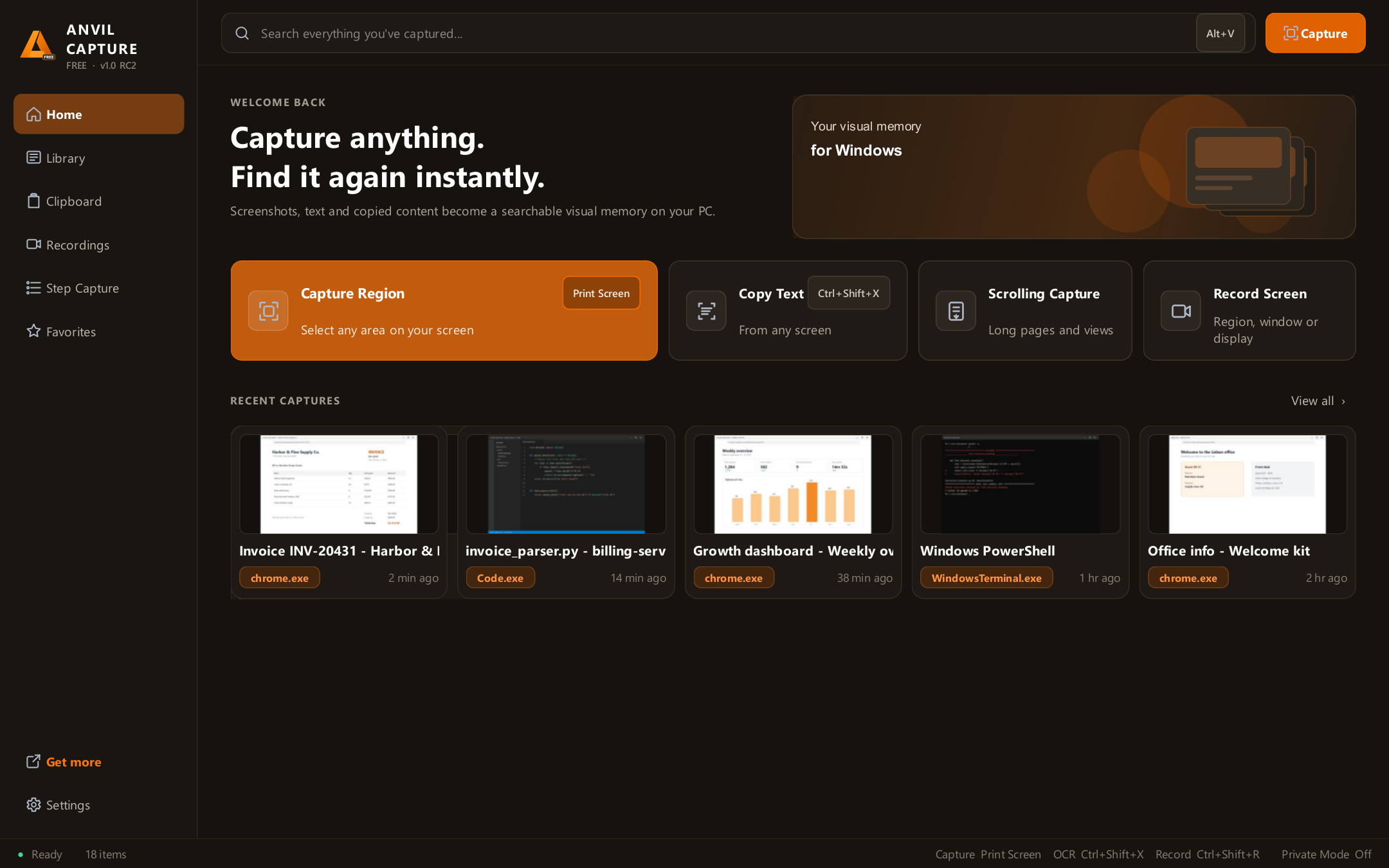
Anvil Capture Capture anything. Find it again instantly. A free, local-first screenshot tool for Windows that reads the text in every capture, so you can search old screenshots and copied text in seconds. Most screenshot…
Anvil Capture
Capture anything. Find it again instantly.
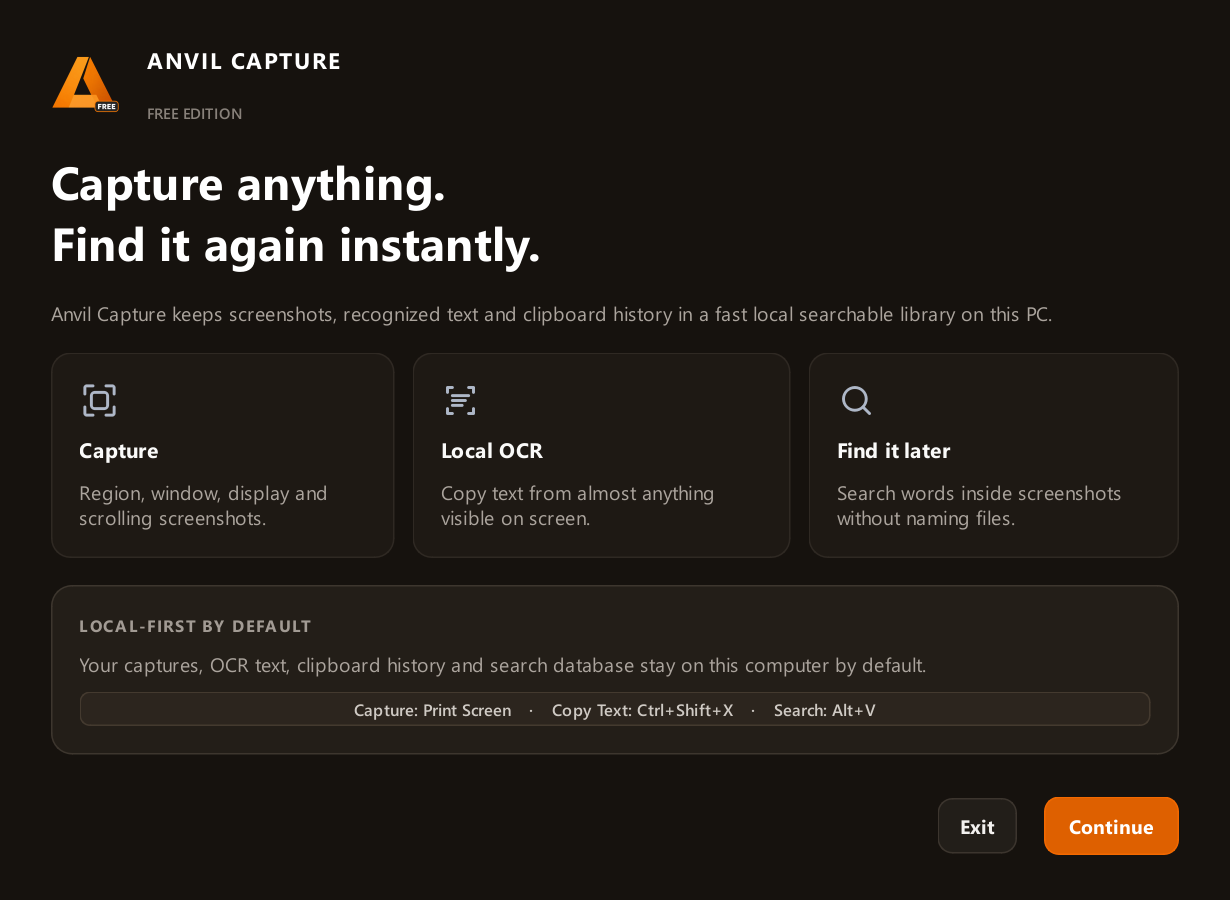
A free, local-first screenshot tool for Windows that reads the text in every capture, so you can search old screenshots and copied text in seconds.
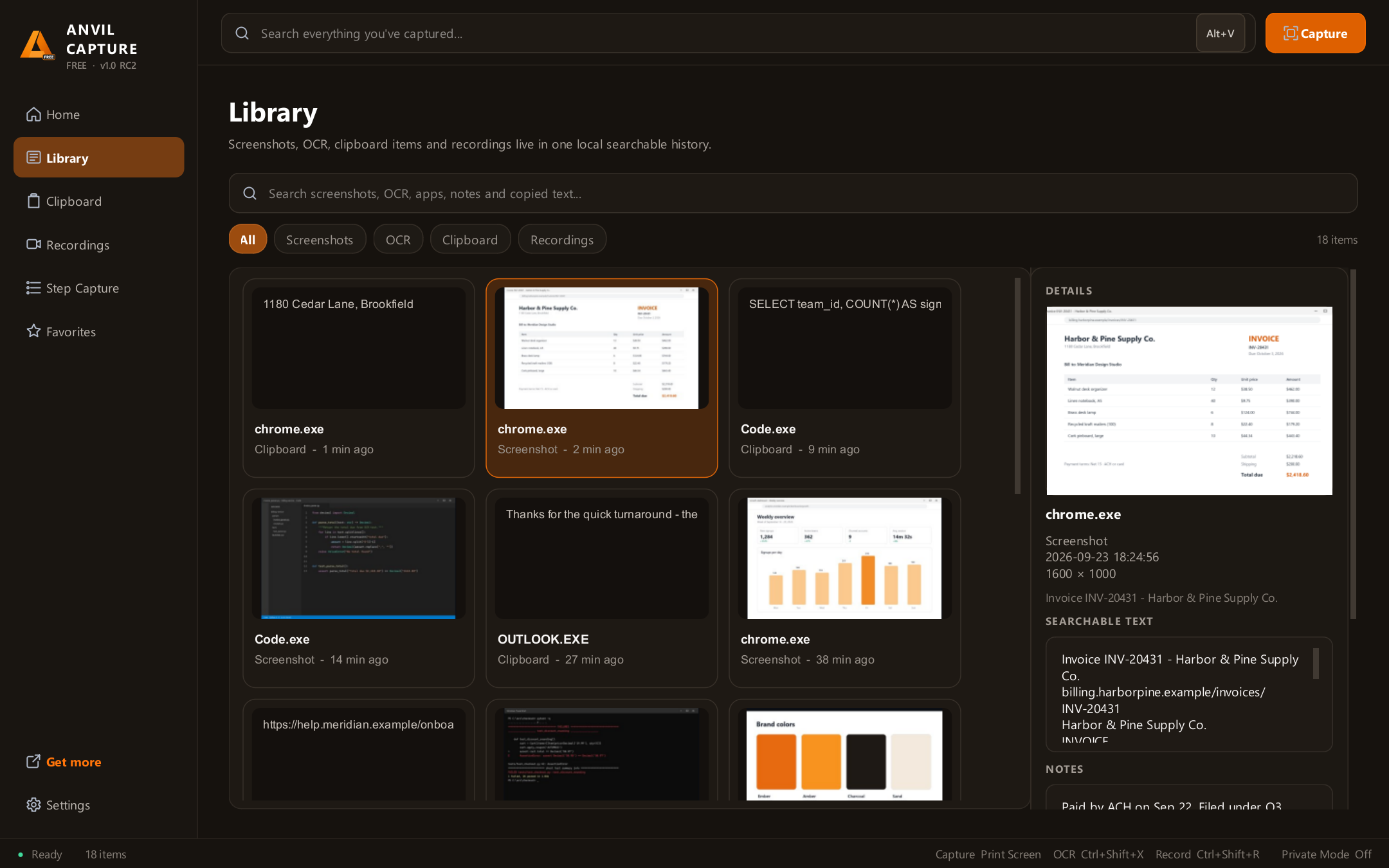
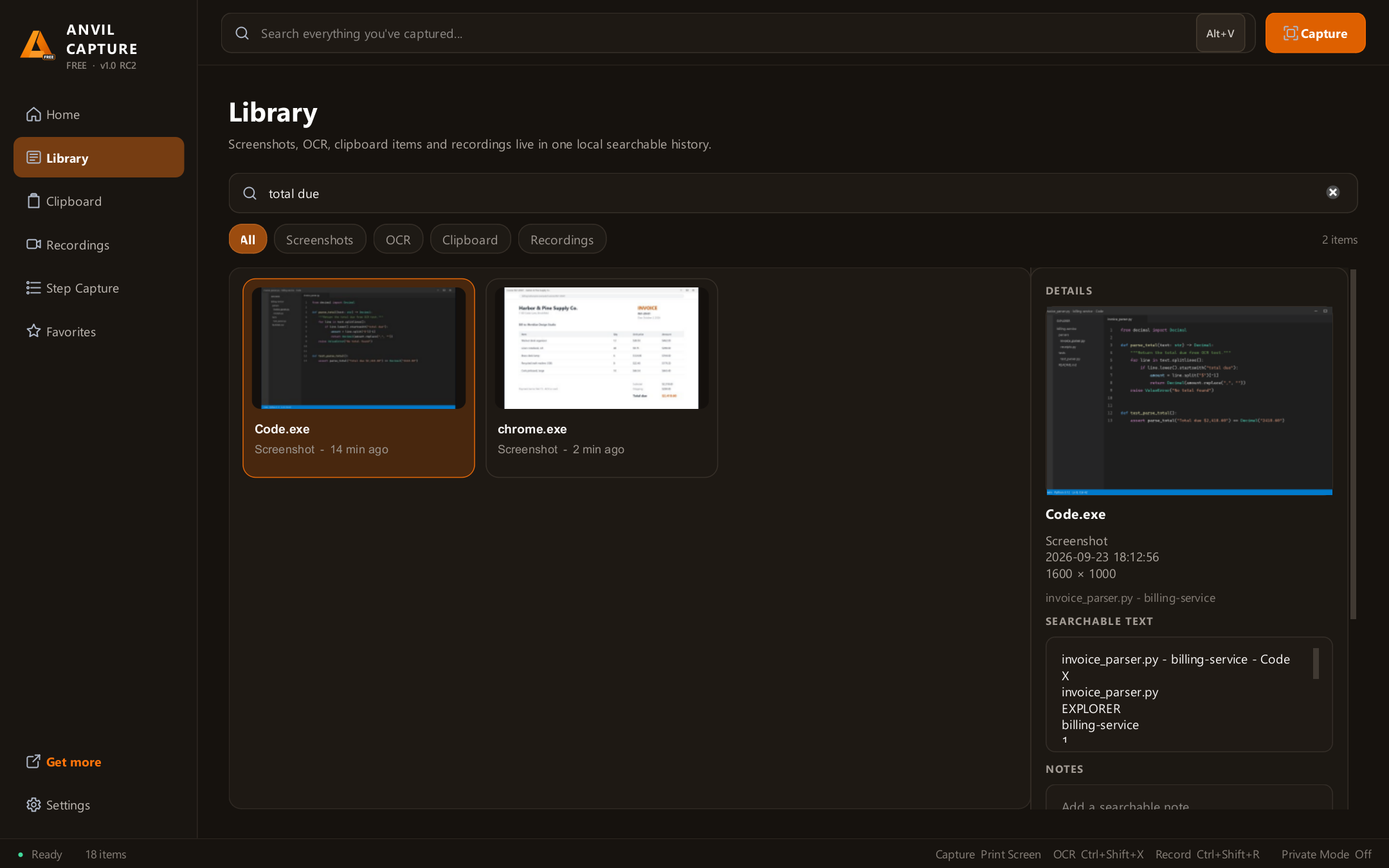
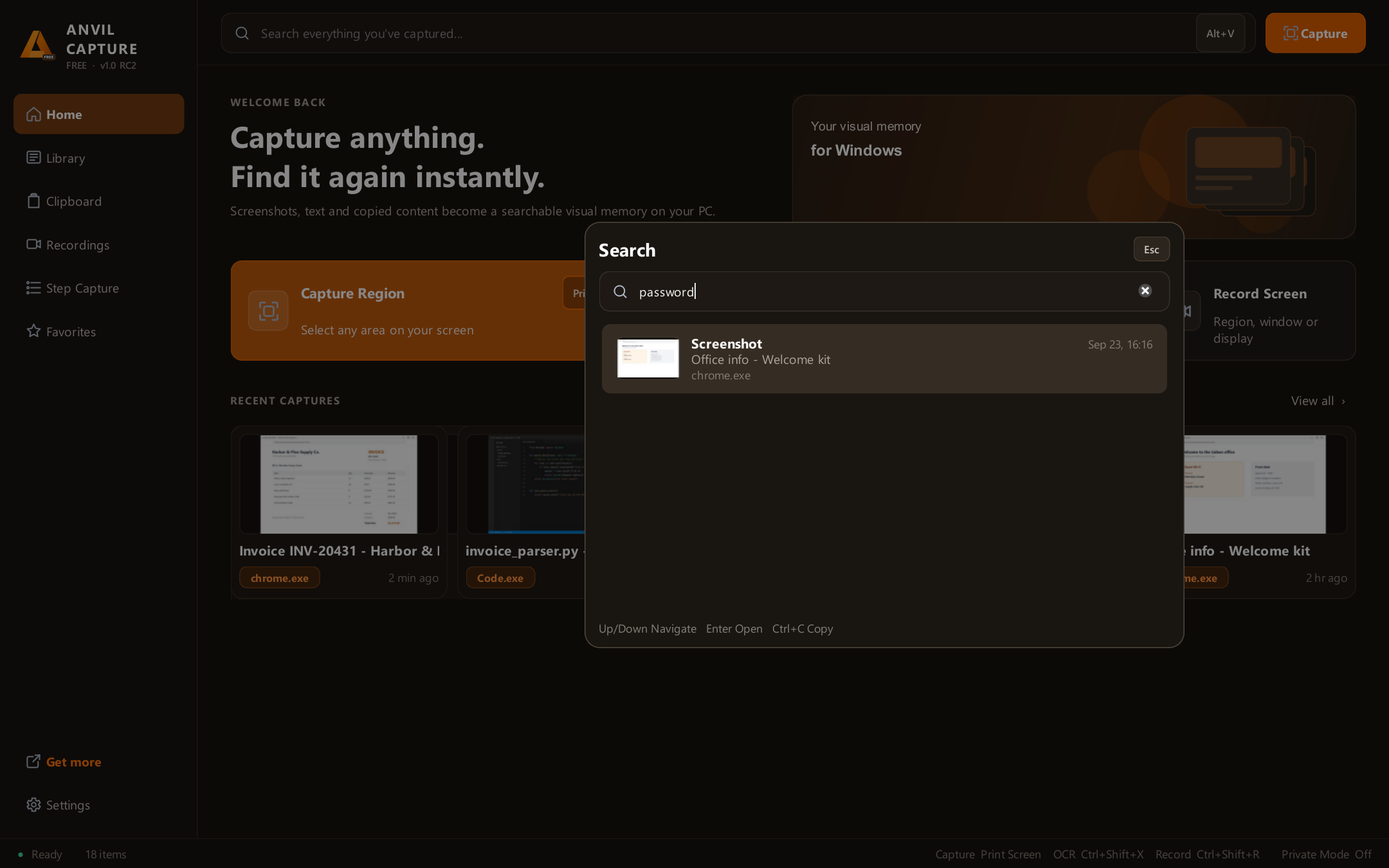
Most screenshot tools stop once the picture is saved. Anvil Capture keeps going. It reads the text in every capture and adds it to a searchable library on your PC. Weeks later, type a word you remember (an invoice number, an error message, a Wi-Fi password) and the right screenshot appears, even if you never renamed the file.
Everything happens on your computer. Anvil Capture doesn't upload your captures, doesn't need an account, and makes no network connections of its own.
Capture the way you work
- Region, window or full display. Press Print Screen and drag, or grab the active window or the whole display.
- Delayed capture for menus and tooltips that disappear when you click.
- Scrolling capture stitches long pages and chat threads into one image.
- Works with multiple monitors and mixed display scaling (100–200%), capturing at full resolution.
Find it again
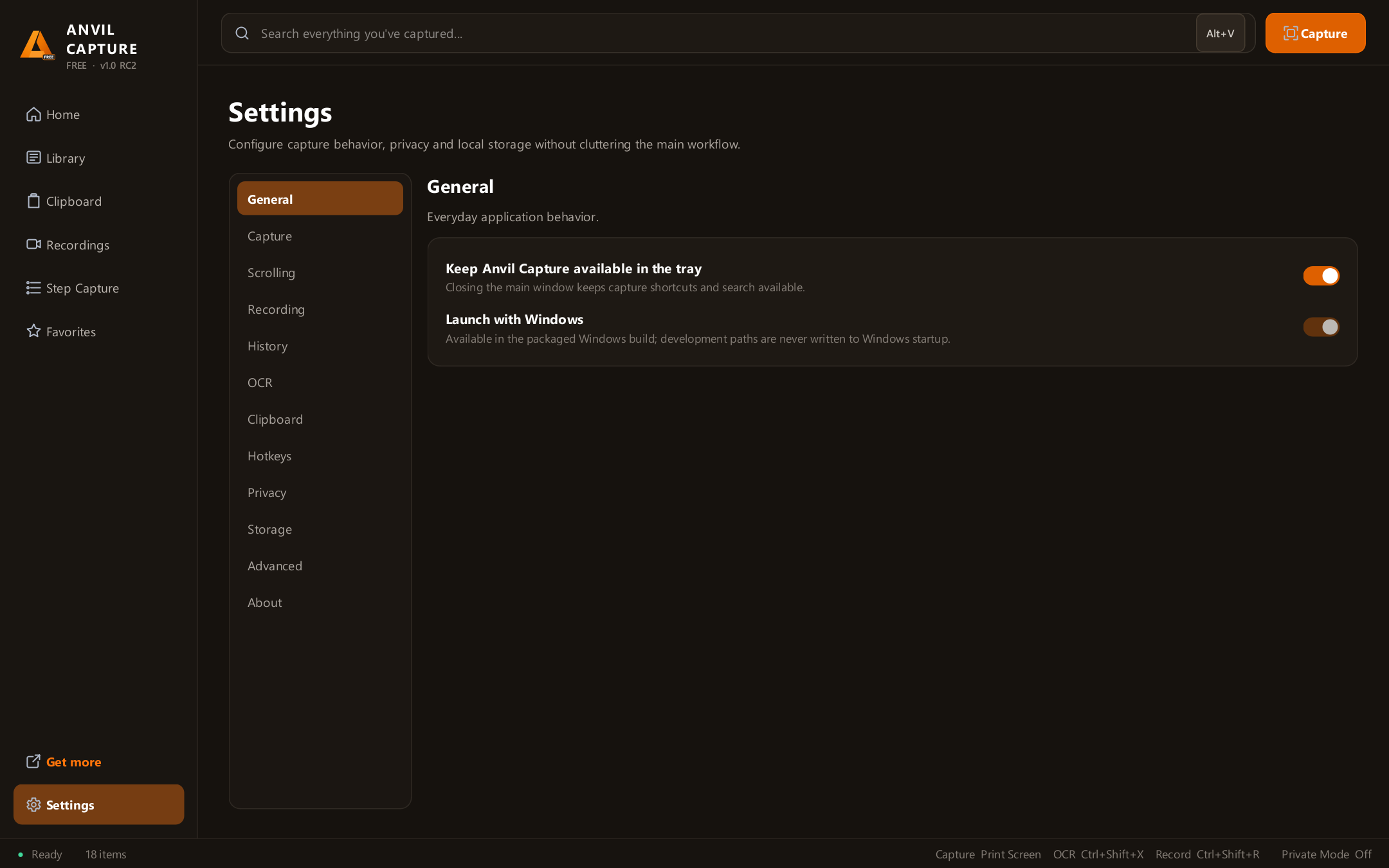
- Text inside every screenshot is searchable. Text is recognized automatically on your own PC.
- Quick Search from anywhere. Press Alt+V over any app to search your whole history: screenshot text, file names, app and window titles, your notes and clipboard history.
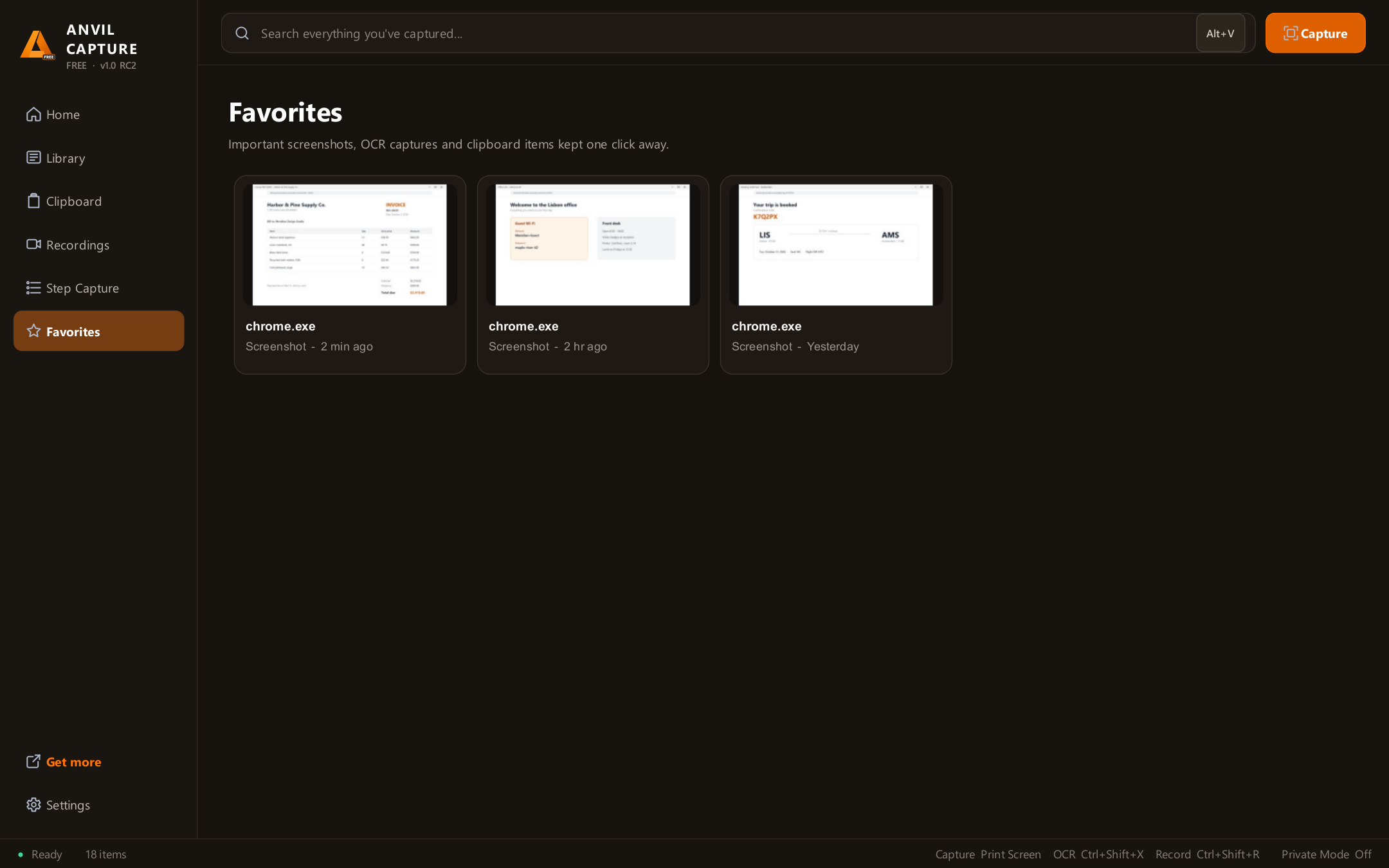
- Notes and favorites for the captures you'll need again.
Copy text from anything on screen
Press Ctrl+Shift+X, select an area, and its text goes straight to your clipboard. It works on images, videos, PDFs, error dialogs and apps that won't let you select text.
Mark it up
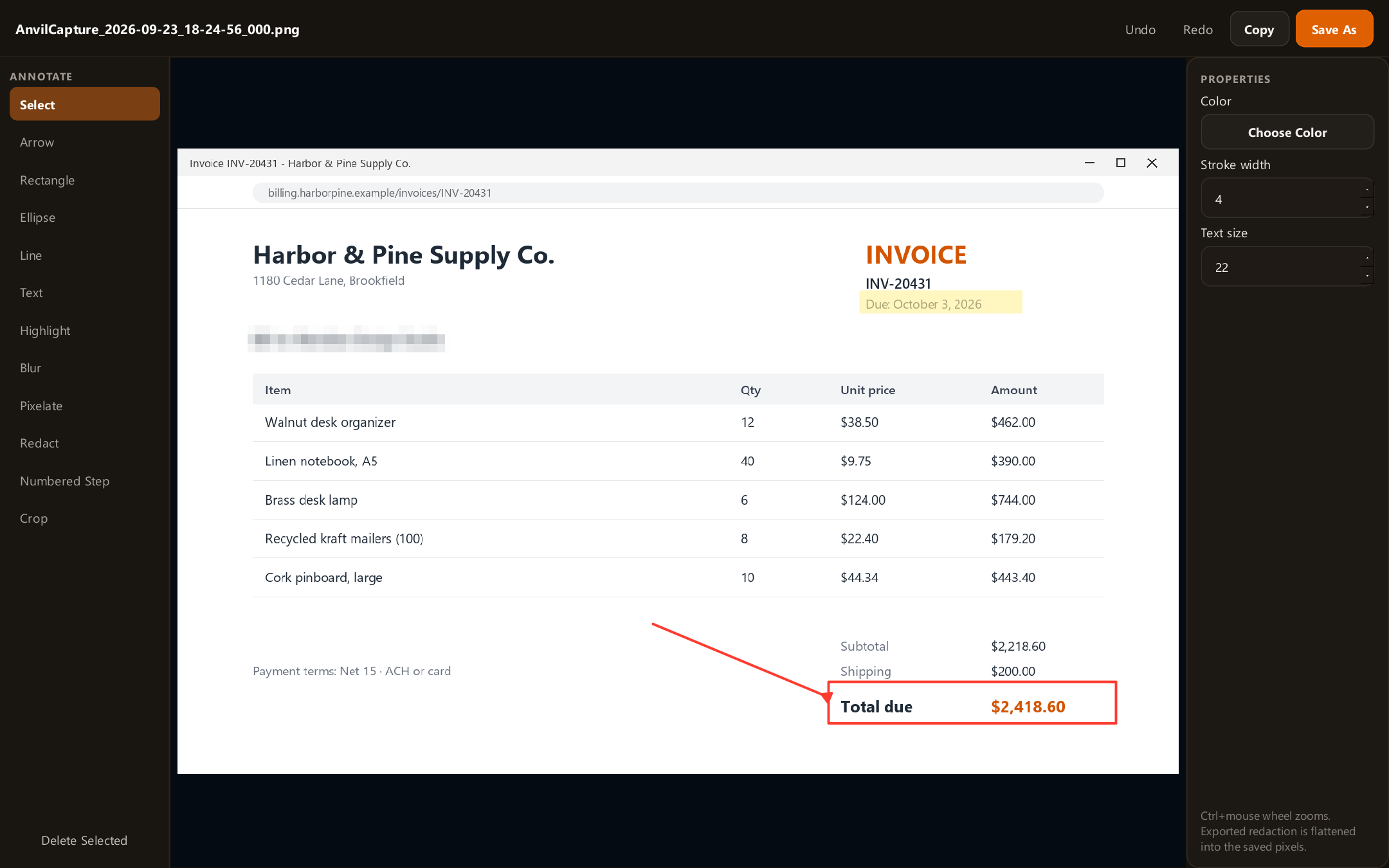
A built-in editor with arrows, rectangles, ellipses, lines, text, highlights and numbered steps. Blur, pixelate or redact sensitive details before sharing; redactions are baked into the saved image, not a removable layer. Crop, undo, copy or save.
Clipboard history
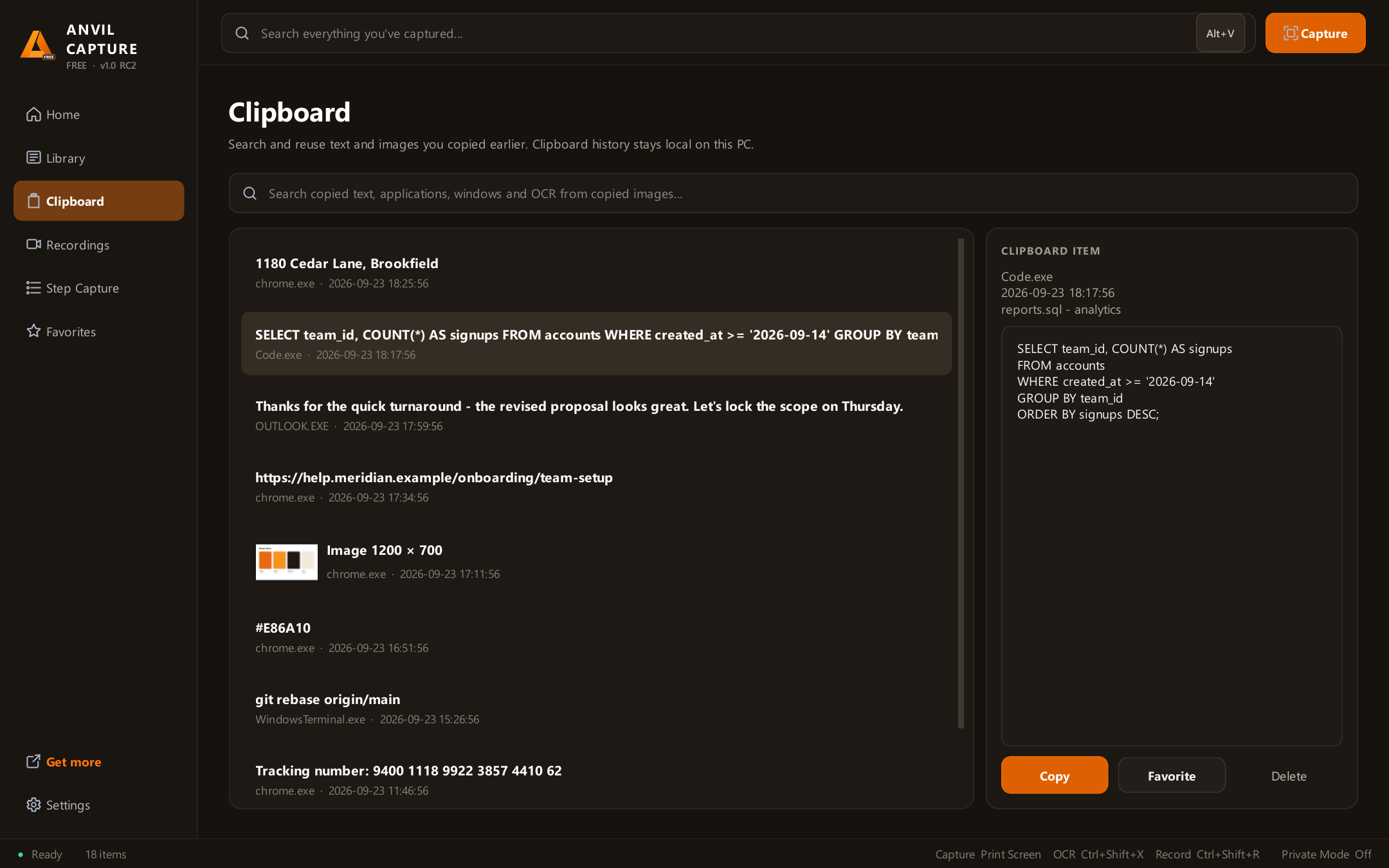
Anvil Capture remembers the text and images you copy, so you can search and reuse them later. Common password managers are excluded by default, you can exclude any other app, and Private Mode pauses clipboard history and automatic text recognition with one click.
Screen recording
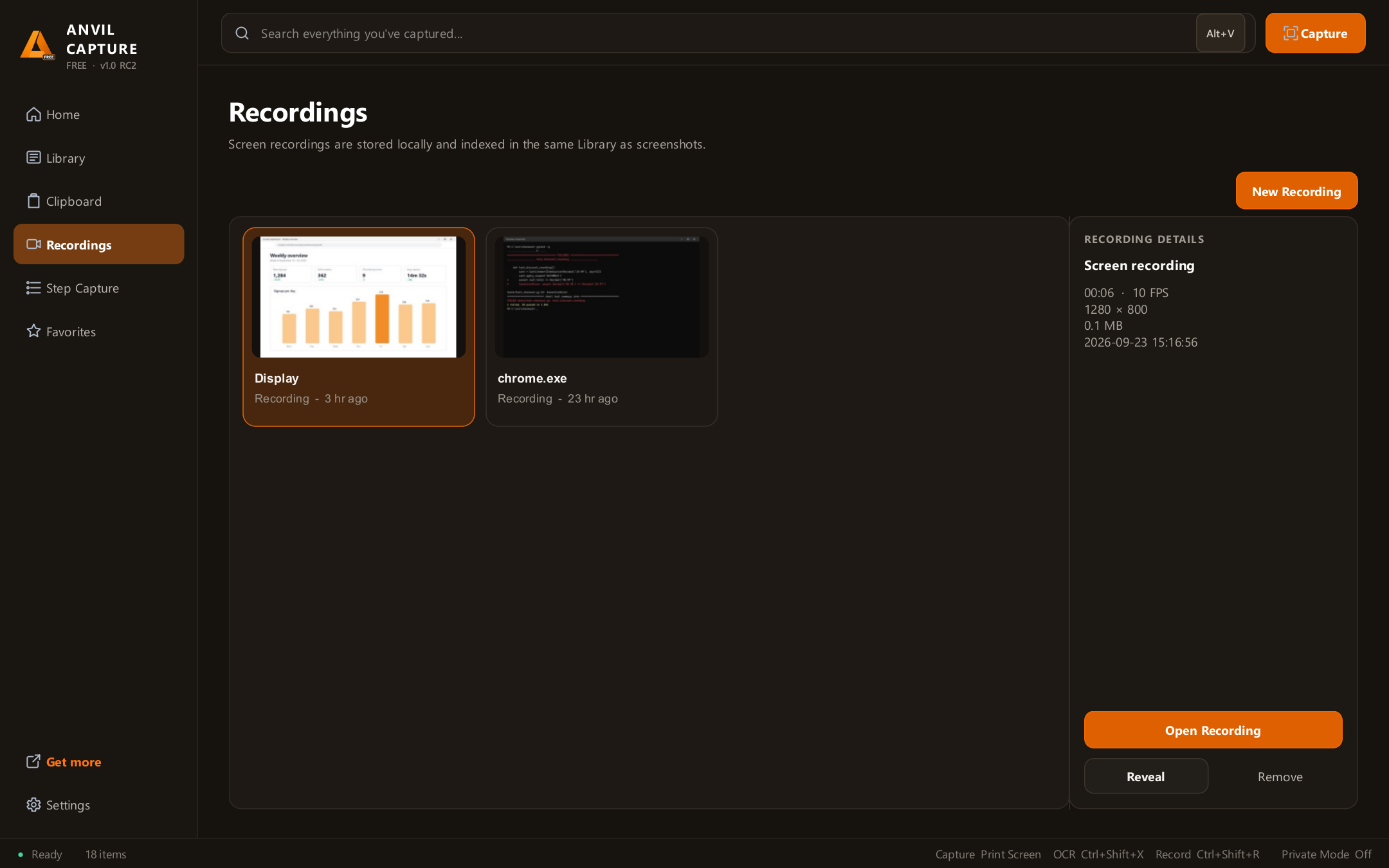
Record a region, window or display to MP4, with pause and resume. Recordings go into the same searchable library. (Video only; audio isn't recorded in this version.)
Step-by-step guides
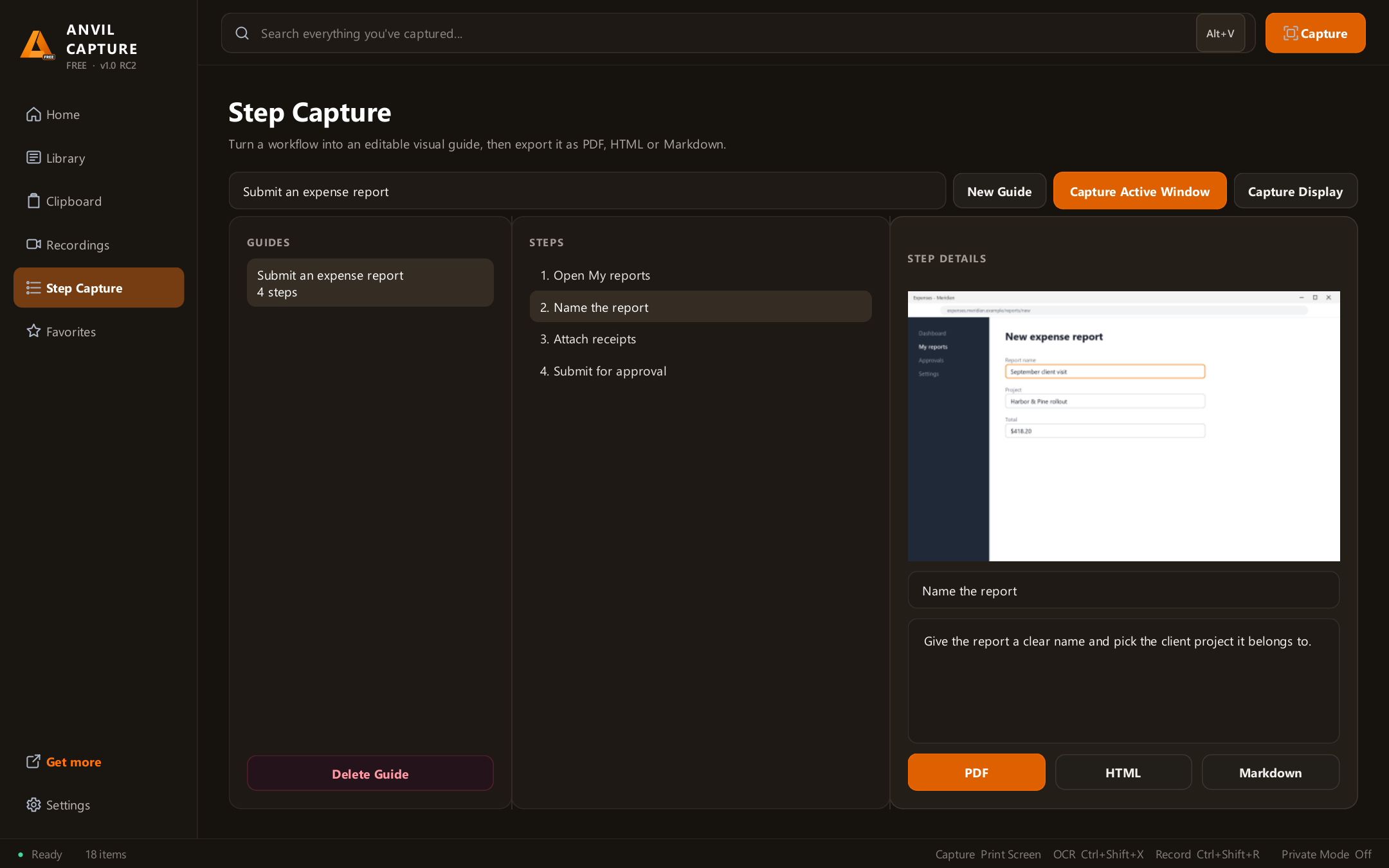
Step Capture turns a process into a how-to guide: capture each step, add a title and description, and export to PDF, HTML or Markdown. Useful for onboarding, support replies and documentation.
Pin screenshots
Keep a screenshot floating on top of other windows while you work, for example as a reference while filling in a form or comparing designs.
Private by design
- Screenshots, recognized text, clipboard history and recordings stay on your PC.
- No account, no cloud sync and no tracking.
- Text recognition runs entirely offline.
- Uninstalling keeps your screenshots and library, so nothing is deleted without your say.
Keyboard shortcuts
| Action | Shortcut | |---|---| | Capture region | Print Screen (or Ctrl+Shift+A if Print Screen is taken) | | Copy text from screen | Ctrl+Shift+X | | Quick Search | Alt+V | | Start or stop recording | Ctrl+Shift+R |
System requirements
- Windows 10 or Windows 11, 64-bit
- About 450 MB of disk space (133 MB download)
- No admin rights needed; installs just for your user account